Import and export lists
Improved by CatodonMove your follows, mutes, blocks, lists, bookmarks and blocked servers in and out as files, with a report at the end.
5 essential features · 7 added since the fork
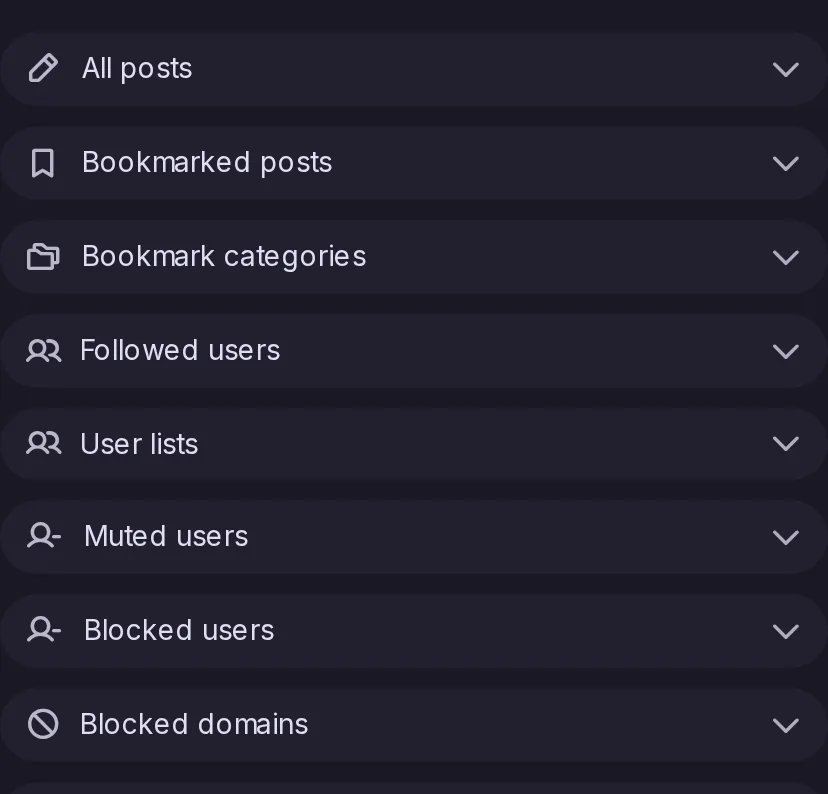
Move your follows, mutes, blocks, lists, bookmarks and blocked servers in and out as files, with a report at the end.
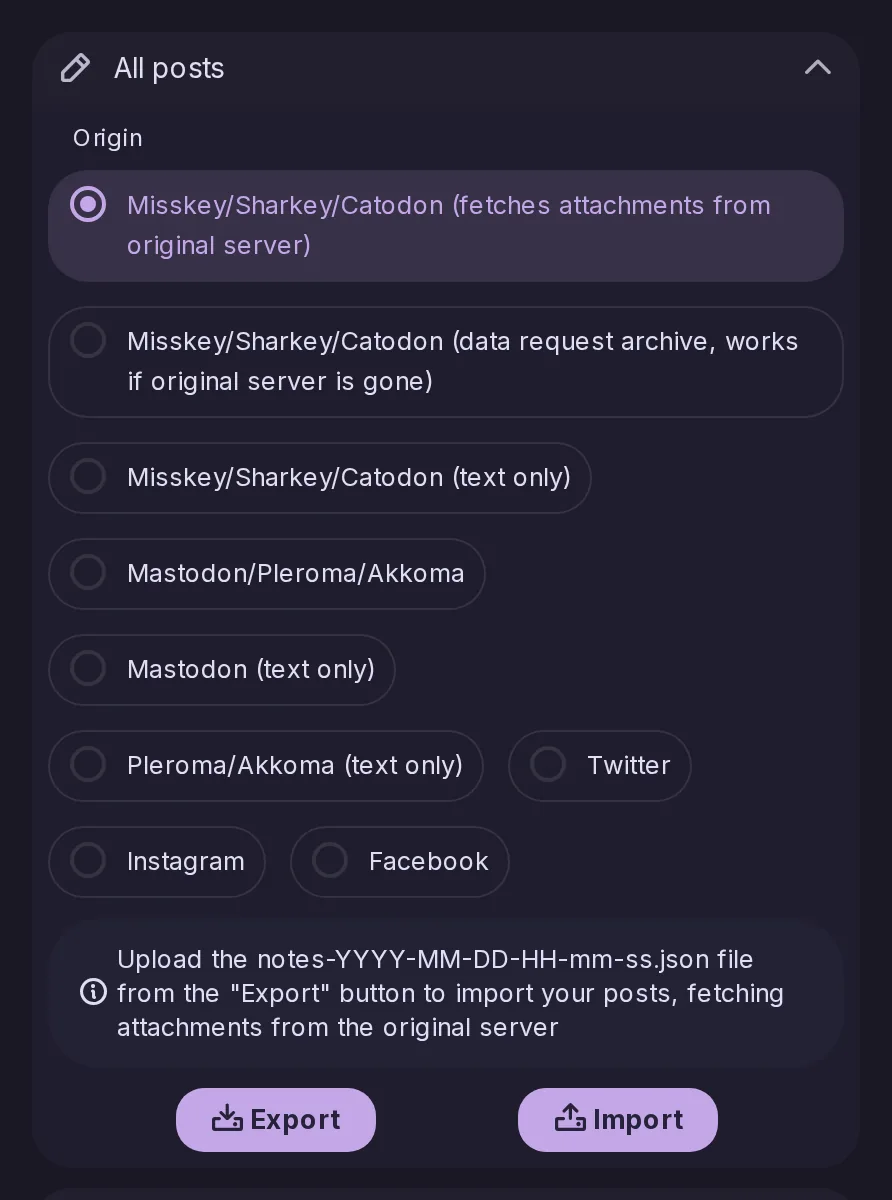
Bring your old posts and pictures from a Mastodon or Misskey archive.
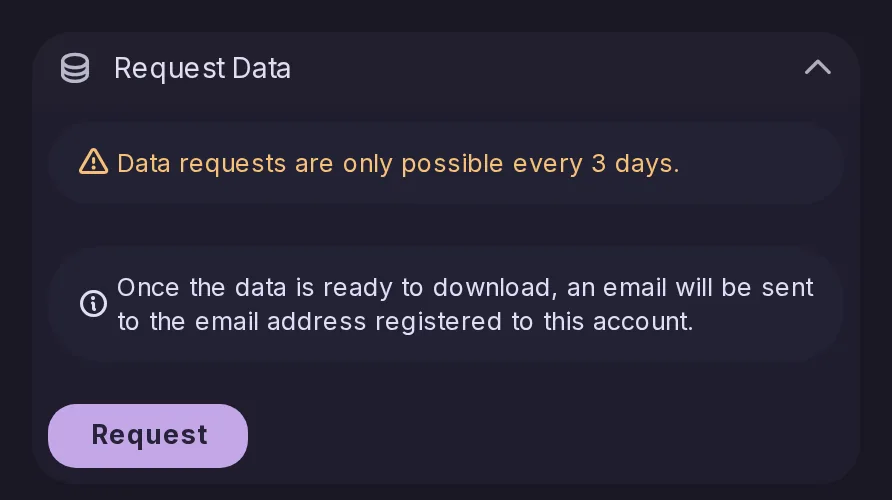
Download a full archive of your account whenever you want.
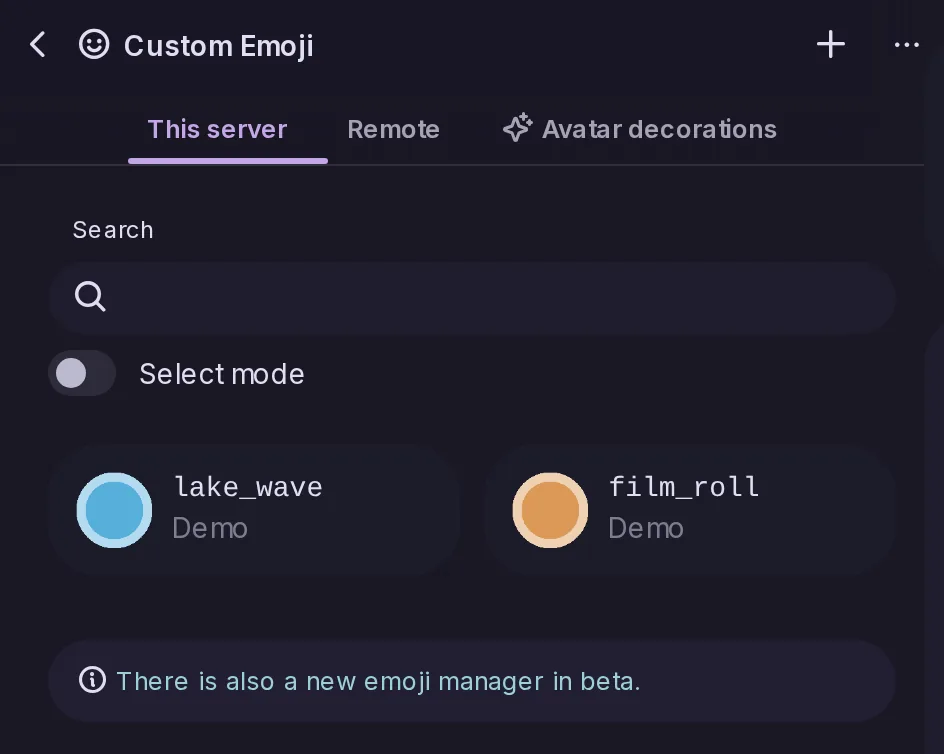
Admins load a ZIP of custom emoji in one go.
Move a Misskey server to Catodon directly, or a Sharkey server, without losing data.
A list or custom feed import now ends with a notification of a new type, importCompleted, carrying importedEntity and counts of what was written and what was left out. The web interface and push notifications show it, an API client can leave it out, and Mastodon apps are not sent it, since Mastodon has no such type.

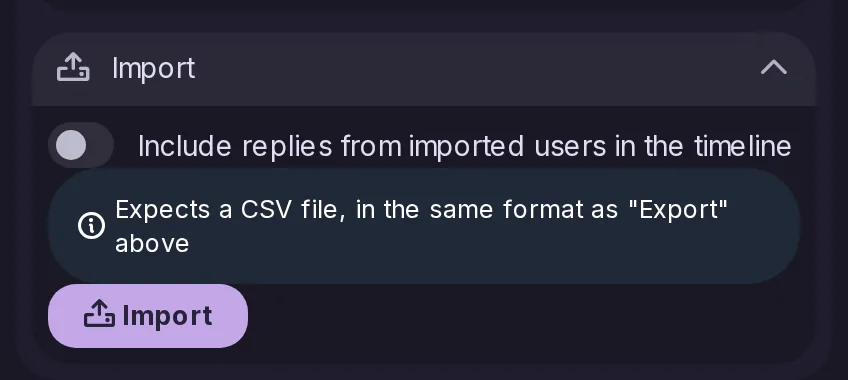
Each import in Settings → Data & storage now shows its expected file format underneath, and the file picker itself is filtered to match, so it is less likely somebody uploads the wrong export by mistake.
Every import now uploads straight to its own endpoint rather than through the generic drive upload, so it is no longer limited by the 25 MB attachment policy meant for avatars and post media. A new server setting caps them instead, 1 GB by default, sized for a full archive with its media.
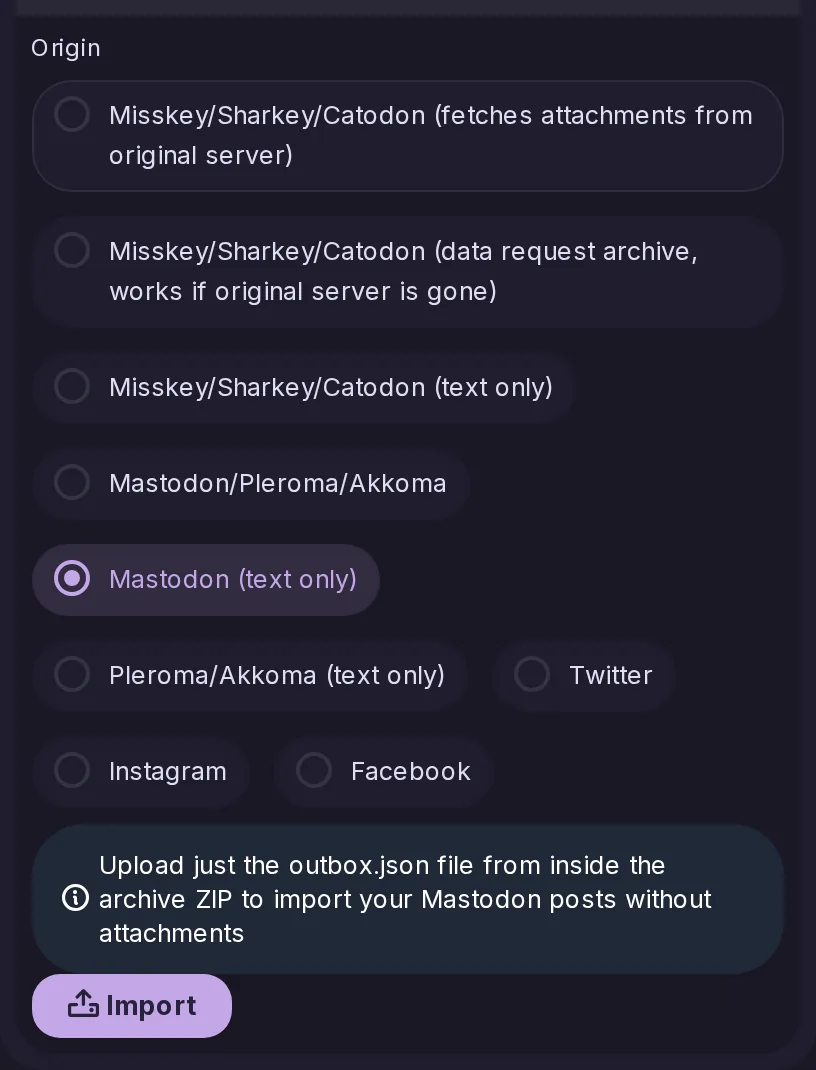
Text-only origins accept just the outbox.json from inside the archive, importing the post text without the attached media. It is the faster option, and the one to reach for when the account's remaining storage would not fit the attachments anyway.
The last two things Mastodon lets somebody carry to a new server and this one did not. Both take the file Mastodon exports, the bookmark import also reads this server’s own export, and every bookmarked post is checked against what the importing account is allowed to see. Settings has no button for either yet, so for now both go through the API.
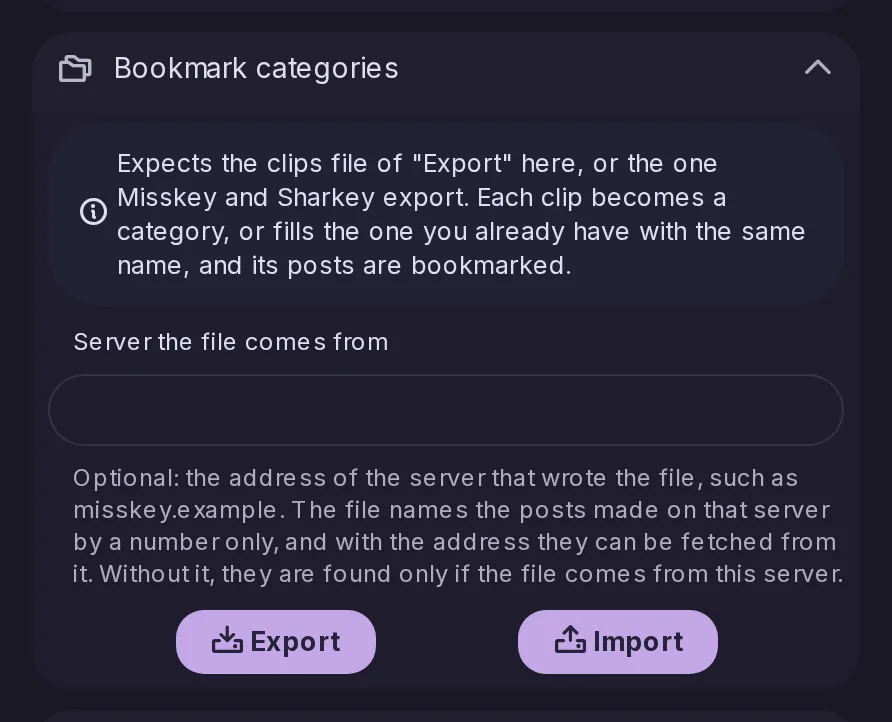
Settings → Data has a Bookmark categories section that exports your categories as a clips file, the format Misskey and Sharkey use, and imports one from Catodon, Misskey or Sharkey, bookmarking every post it holds. A new field naming the server a file comes from lets posts from that server be found again, for this import and for the bookmark import alike.
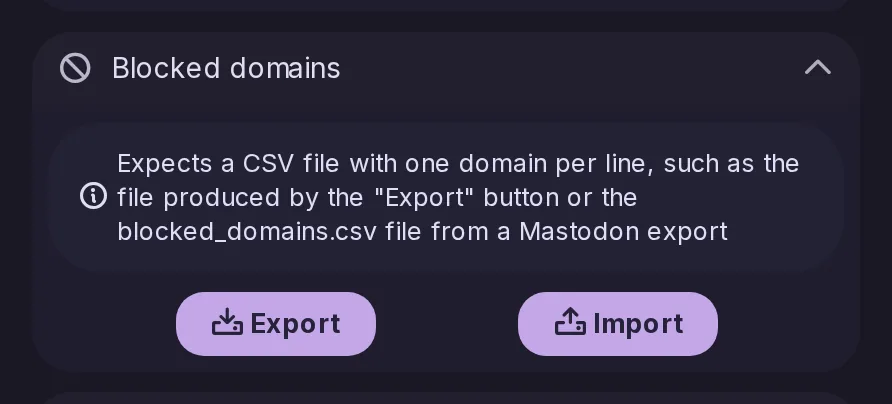
The bookmark and blocked domain imports added on the server in 26.10.0 now have buttons in Settings → Data and storage → Import and export, taking Catodon's own files or Mastodon's. Blocked servers export straight away as blocked_domains.csv, the file Mastodon reads, and admins can allow or refuse either import per role.